Ao pressionar o botão "Aprovar":
- Aprova a proposta;
- Declara que leu atentamente o teor da proposta e que a aceita para todos os fins indicados;
- Declara que a aprovação efetuada é uma representação eletrónica equivalente à assinatura em papel.
- A sua decisão é gravada no "Certificado de Conclusão" que é gerado automaticamente e adicionado no final da proposta.
Assim que o processo de aprovação ficar concluído, será enviado a todos os signatários, um email com o PDF da proposta munida do certificado a atestar aprovação.
Ao pressionar o botão "Pré-Aprovar":
- A proposta é Pré-Aprovada, autorizando o recebimento de uma nova versão da proposta, com nova informação e que complementa às atuais condições apresentadas;
- Declara que leu atentamente o teor da proposta e que a aceita para todos os fins indicados;
- Declara que a aprovação efetuada é uma representação eletrónica equivalente à assinatura em papel.
- A sua decisão é gravada no "Certificado de Conclusão" que é gerado automaticamente e adicionado no final da proposta.
Assim que o processo de pré-aprovação ficar concluído, será enviado a todos os signatários, um email com o PDF da proposta munida do certificado a atestar a pré-aprovação.
Ao pressionar o botão "Gravar":
- As opções do orçamento são gravadas e bloqueadas, formalizando a seleção efetuada.
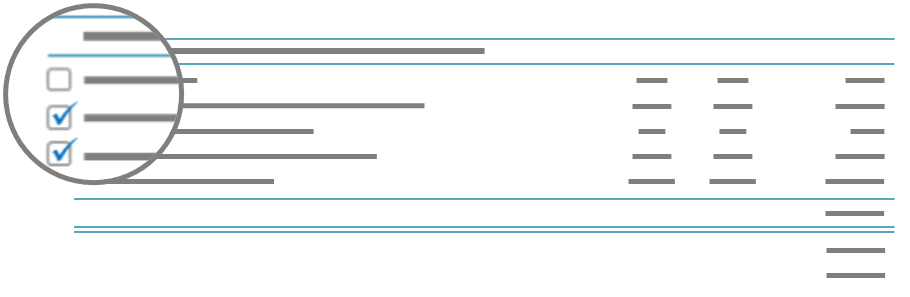
Por favor complete as opções do orçamento antes de gravar.
Tem de seleccionar pelo menos uma opção (ou escolher uma alternativa em cada grupo obrigatório).
Escolha uma opção nos seguintes casos:
Confirmação:
- As suas opções do orçamento foram gravadas com sucesso;
- Para finalizar o processo de aprovação clique em "Continuar".
Ao pressionar o botão "Chumbar":
- Chumba a proposta e a negociação é terminada;
- A sua decisão é gravada no "Certificado de Conclusão" que é gerado automaticamente e adicionado no final da proposta.
Ao pressionar o botão "Alterar":
- É enviado ao responsável comercial o pedido de alterações;
- A proposta atual é chumbada, para admitir a nova versão da proposta;
- A sua decisão é gravada no "Certificado de Conclusão" que é gerado automaticamente e adicionado no final da proposta.
Ao pressionar o botão "Cancelar":
- O pedido de alterações à proposta é cancelado;
- A negociação é terminada.
Ao pressionar o botão "Aceitar":
- Aceita receber uma nova versão da proposta;
- A proposta atual é chumbada, para admitir a nova versão da proposta;
- A sua decisão é gravada no "Certificado de Conclusão" que é gerado automaticamente e adicionado no final da proposta.
Ao pressionar o botão "Rejeitar":
- Rejeita receber uma nova versão da proposta;
- A proposta permanece inalterada.
Ao pressionar o botão "Anular":
- É enviado ao responsável comercial um pedido de anulação da proposta;
- Caso o pedido seja aceite, o "Certificado de Conclusão" será atualizado com o pedido de anulação e a aceitação do responsável comercial.
Assim que o processo de anulação ficar concluído, será enviado a todos os signatários, um email com o PDF da proposta munida do certificado a atestar anulação.
Ao pressionar o botão "Cancelar":
- O pedido de anulação da proposta é cancelado;
- A proposta permanece no estado aprovado.
Ao pressionar o botão "Aceitar":
- Aceita o pedido de anulação e a proposta é anulada;
- O "Certificado de Conclusão" é atualizado com o pedido de anulação do responsável comercial e com a sua aceitação.
Assim que o processo de anulação ficar concluído, será enviado a todos os signatários, um email com o PDF da proposta munida do certificado a atestar anulação.
Ao pressionar o botão "Rejeitar":
- Rejeita pedido de anulação e a proposta permanece aprovada.
- A proposta foi desistida e a negociação dada como terminada;
- Ao visualizar este aviso, a notificação de desistência é considerada entregue. Ficando a atual consulta da proposta e respetiva notificação, gravada no "Certificado de Conclusão" que é gerado automaticamente e adicionado no final da proposta;
- A proposta deixará de estar acessível no prazo de 72 horas.
Para saber mais informações, entre em contacto com o responsável comercial.
Ao pressionar o botão "Aceitar":
- Aceita a desistência da proposta e a negociação é terminada;
- A sua decisão é gravada no "Certificado de Conclusão" que é gerado automaticamente e adicionado no final da proposta.
Ao pressionar o botão "Rejeitar":
- Rejeita a desistência da proposta;
- A proposta permanece inalterada.
Está a aceder à Proposta através de um link destinado ao Cliente.
Para continuar, por favor, escolha uma das formas de consultar o documento.
Entrar como Cliente
- O documento estará em modo de decisão, se o cliente tiver o perfil de decisor ou assinante pode tomar decisões sobre o documento.
- Serão registadas estatísticas da visita.
Entrar como Utilizador
- O documento estará apenas em modo visualização;
- Não serão registadas estatísticas da visita.
Atenção, os metadados registados numa decisão serão os mesmos do utilizador, visto que o dispositivo e browser são o mesmo.
Está a aceder ao Documento através de um link destinado ao Cliente.
Para continuar, por favor, escolha uma das formas de consultar o documento.
Entrar como Cliente
- Serão registadas estatísticas da visita.
Entrar como Utilizador
- Não serão registadas estatísticas da visita.
No Modo de Simulação da Vista do Cliente as ações não são efetuadas.
Ao clicar em "Confirmar" alterar as opções do orçamento:
- As opções do orçamento serão desbloqueadas para seleção.
- As decisões efectuadas (assinaturas) até ao momento serão eliminadas.

 Recarregar Página